WHM-administratörer kan erbjuda användare på sina cPanel-servrar kostnadsfria SSL-certifikat (Powered by Sectigo). AutoSSL är ett cPanel-verktyg som automatiskt skapar och förnyar dessa certifikat var tredje månad. Verktyget genomför regelbundna granskningar av installerade certifikat och ersätter de som närmar sig utgångsdatum, samt avvisar certifikat som inte uppfyller grundläggande säkerhetskrav.
Så här gör du
-
Steg 1: Öppna AutoSSL-hanteringen
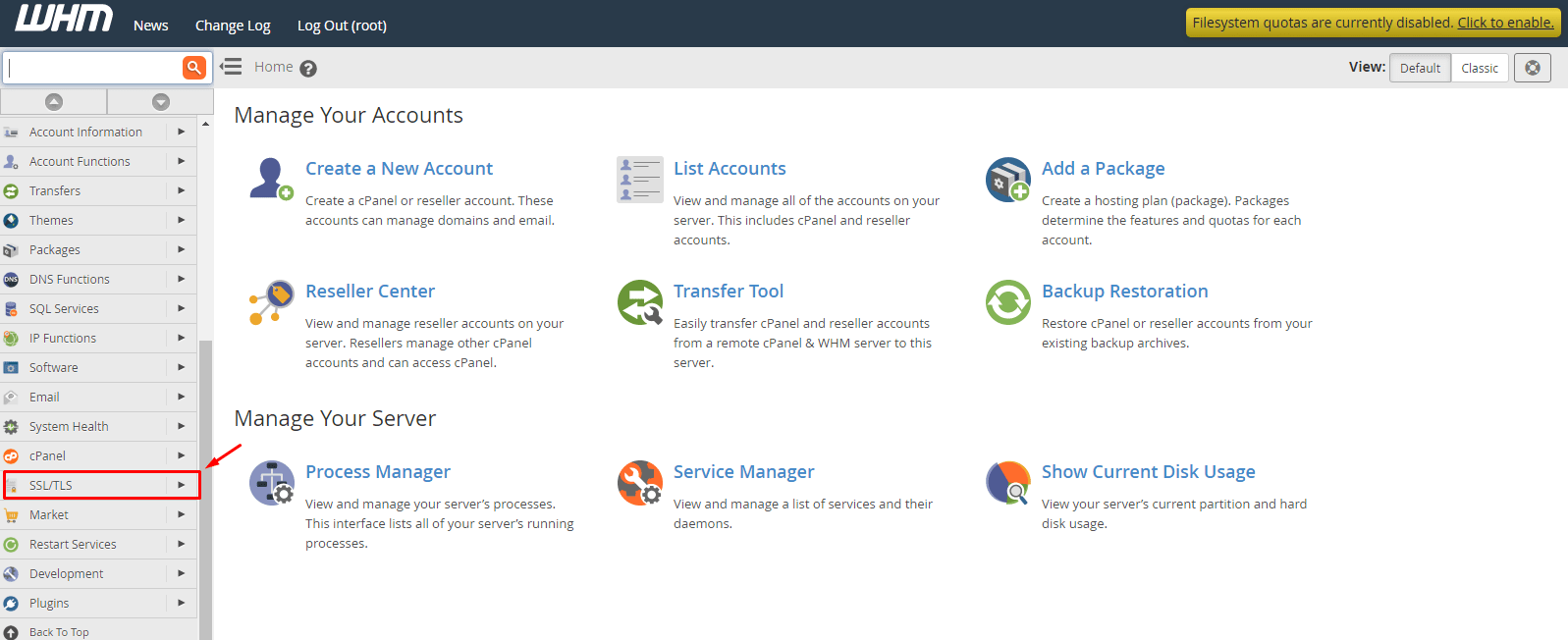
Logga in på ditt WHM-root-konto.
Gå till SSL/TLS-alternativet i menyn.
Välj Hantera AutoSSL.
AutoSSL-hanteringspanelen öppnas och presenterar olika verktyg och alternativ för verktyget.
-
Steg 2: Välj AutoSSL-leverantör (globalt)
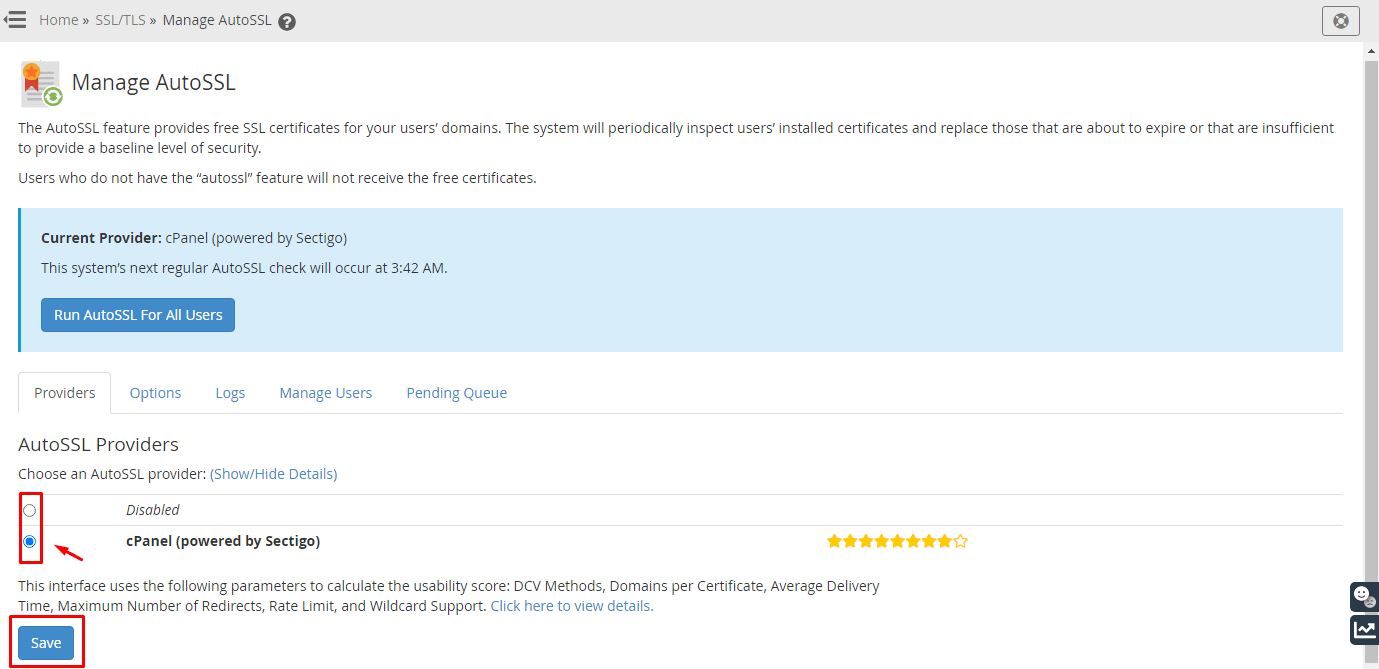
Gå till avsnittet AutoSSL-leverantörer.
Välj mellan Inaktiverad eller cPanel (powered by Sectigo) för att inaktivera eller välja AutoSSL-leverantören.
Klicka på knappen Spara för att behålla dina ändringar.
-
Steg 3: Hantera AutoSSL för specifika användare
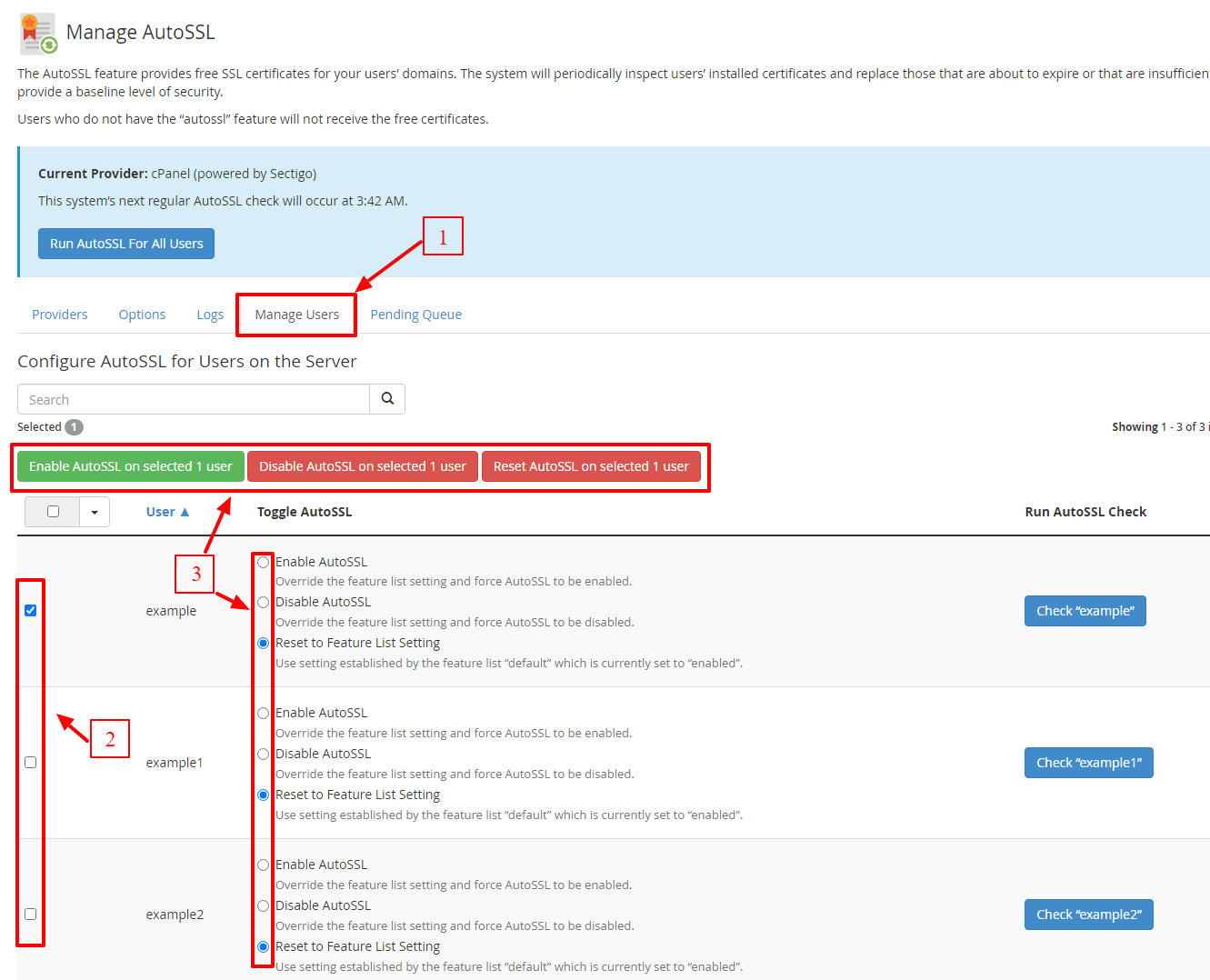
Klicka på fliken Hantera användare.
Denna flik innehåller AutoSSL-konfigurationsparametrar för varje användarkonto på din server.
-
Steg 4: Justera inställning för ett specifikt konto
För att justera ett kontos AutoSSL-alternativ, välj det från listan.
Välj från ett av de tre alternativen:
- Aktivera AutoSSL
- Inaktivera AutoSSL
- Återställ till funktionslistan – återgår till den ursprungliga inställningen
Användare med AutoSSL inaktiverat kommer inte att få kostnadsfria SSL-certifikat från cPanel.